What this activity teaches
Send Practice lets you send freely with your straight key, paddle or bug. Morse Scout decodes your sending and shows it on screen, so you can immediately see whether your characters and spacing are being read as intended. It does not keep a score.
What you need
- A key connected and configured in Keyer settings.
Start practising
- On the main menu, select Send.
- Select Practice.
- Send a character or word. Each character appears when Morse Scout recognizes its end; a longer gap inserts a word space.
Send and review decoded text
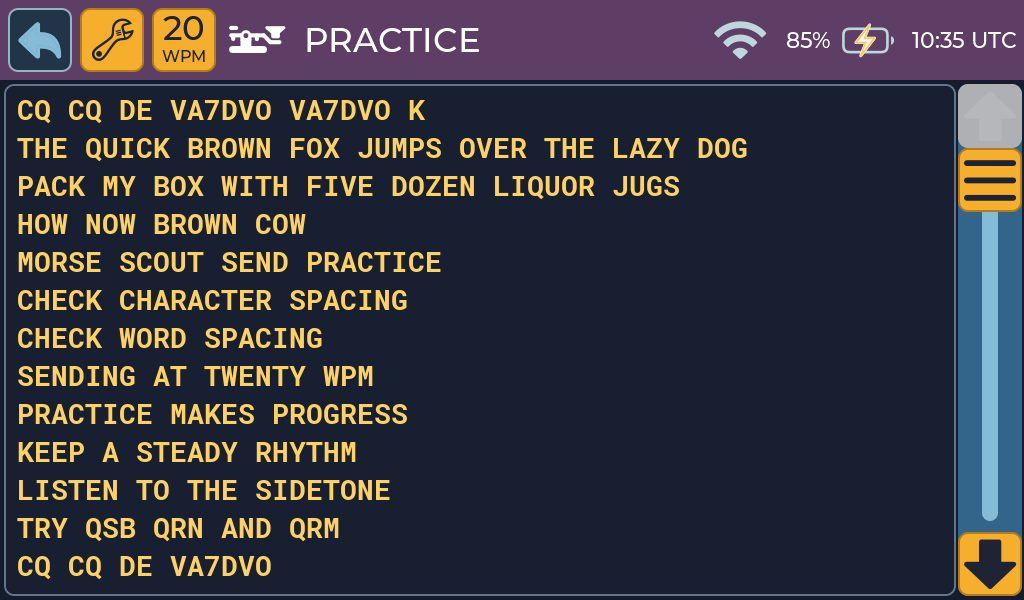
- Text area: shows decoded characters and word spaces.
- Back: stops the activity and returns to the Send menu.
- Speed: changes the character speed used for paddle timing and decoding.
- Advanced: opens the sidetone and signal-effects panel. The wrench appears only after Advanced Features is enabled.
- Scrollbar: becomes available when the decoded text fills the window.
Older text remains available for review until the activity’s history buffer is full. Send Practice retains roughly the last 16 screens of text.
Change the speed
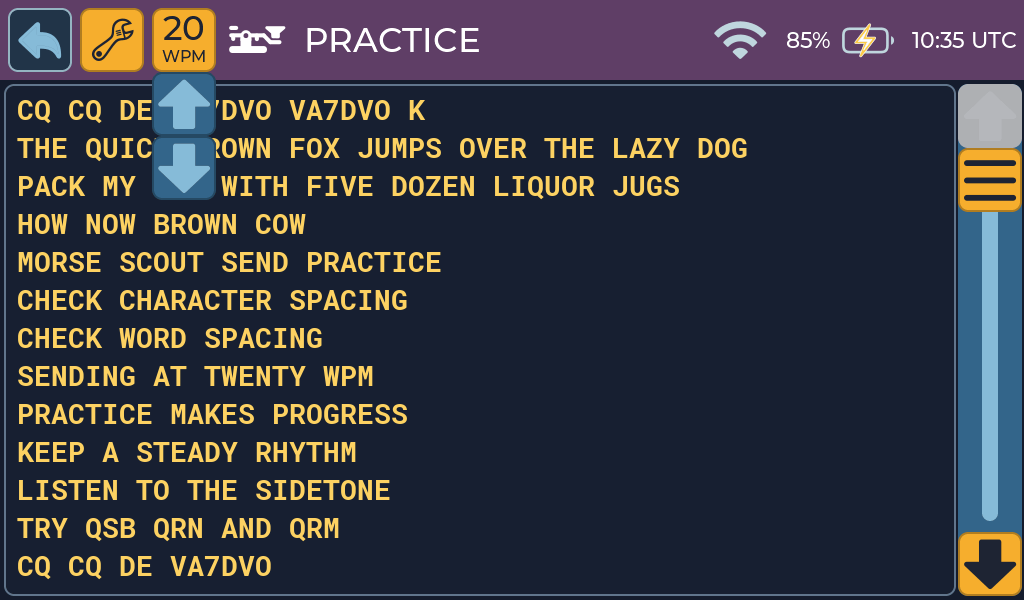
Tap the WPM control in the title bar to open it. Use − or + to change the character speed, then tap the WPM control again to close the popup. Set it to the speed you are actually sending; decoding is most reliable when they match.
Enable the advanced panel
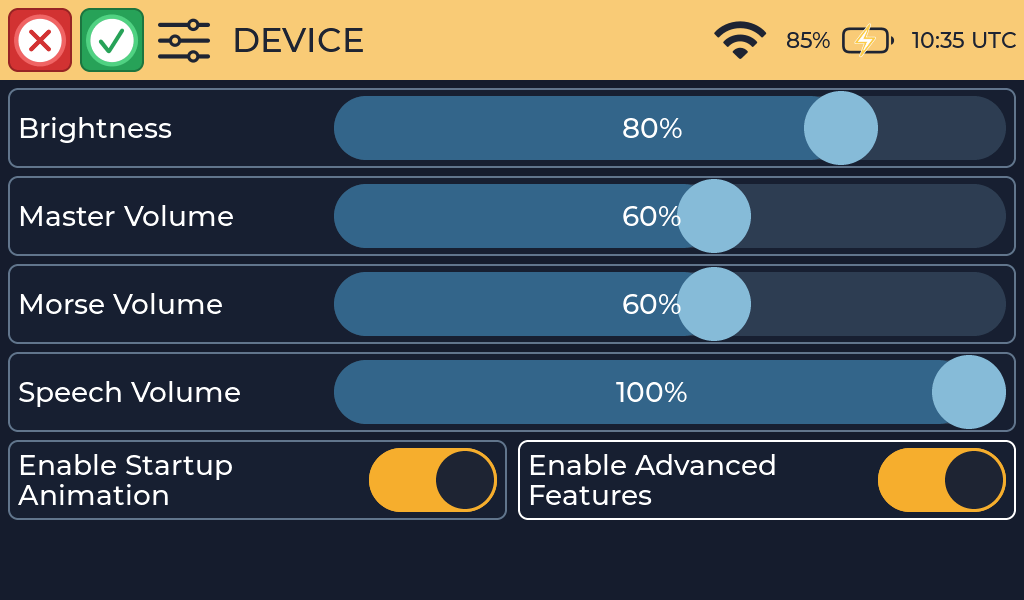
- Open Settings → Device.
- Turn on Enable Advanced Features.
- Select the green Save button.
- Return to Send → Practice. A wrench button now appears in the title bar.
Sidetone presets and signal effects
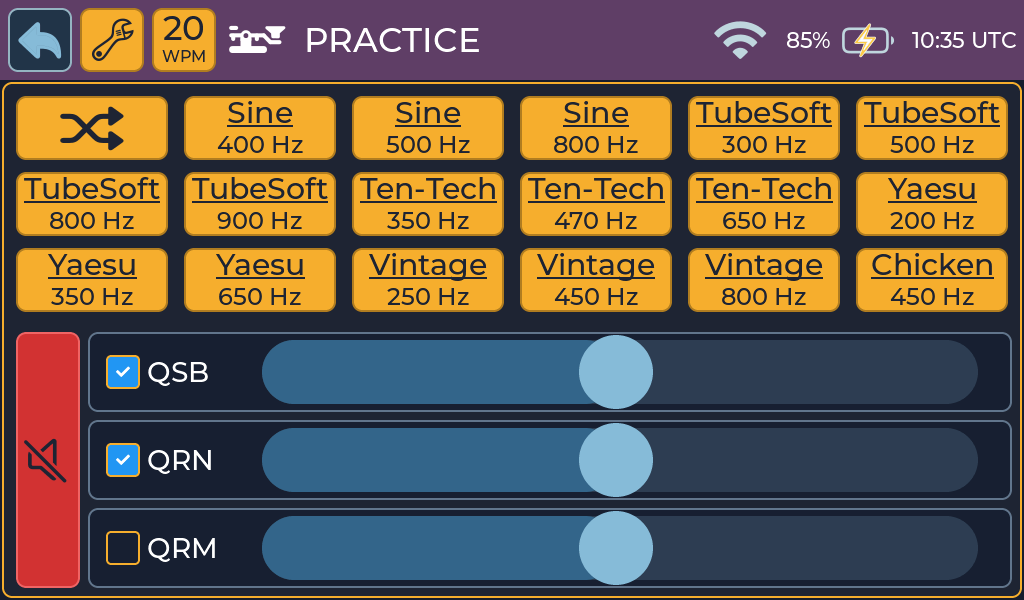
Tap the wrench to open or close the panel. These controls affect only the current Send Practice session and start with the signal effects off and their sliders at 50 each time the activity is opened.
| Control | Meaning and behavior |
|---|---|
| Sidetone preset | Selects a sidetone character and pitch for this session. Tap the selected preset again to clear the temporary override and return to your saved Sidetone settings. |
| Random sidetone | Chooses a different available preset and frequency at random and applies it immediately. Repeated taps keep choosing among the other available choices. |
| QSB | Fading: the wanted sidetone becomes stronger and weaker, like a radio signal whose propagation is changing. |
| QRN | Natural or atmospheric noise, including receiver-like static and occasional crackles. |
| QRM | Interference from other stations, simulated here as background Morse traffic. |
| Mute | Temporarily silences all three signal effects (QSB, QRN and QRM) at the same time without losing which effects were enabled or their slider positions. The button turns red while muting is active. |

Random sidetone: selects another available sidetone preset and frequency without changing the saved setting under Settings → Sidetone.

Mute signal effects: tap once to mute QSB, QRN and QRM together. The button turns red while checked. Tap it again to hear the enabled effects at their previous intensity settings.
The panel says QSB, not QRB. QRB is a different Q-code meaning the distance between stations; it is not a Send Practice effect.
The check box turns each effect on or off, while its slider sets intensity from 0 to 100. QSB acts on the wanted sidetone. QRN and QRM are mixed in afterward, before the device’s overall output-volume control.
Reading the decoded text
- A red ? means Morse Scout could not recognize the pattern. Check the number of dits and dahs and the spacing inside the character.
- A normal white ? is a correctly sent question mark.
- Run-together letters usually mean character gaps are too short.
- Unexpected spaces mean a gap was long enough to count as a word gap.
- Prosigns appear as <AR>, <SK> and so on, or with an overline, according to Prosigns settings.
Practice tips
- Begin without signal effects, then add one effect at low intensity.
- Use QSB to practise maintaining timing while your own sidetone fades.
- Add QRN for atmospheric noise, then QRM when you are ready for competing Morse.
- Try Random sidetone to check that your timing does not depend on one familiar pitch or sound.
Common problems
- No sound or decoded text: confirm the input is not set to Not Connected.
- Dits and dahs are swapped: change Contact Order in Keyer settings.
- Too many red question marks: match the speed setting to your sending and check your character spacing.
- No wrench button: enable Advanced Features under Settings → Device and save.
More help: Troubleshooting.