Send Practice has extra controls that make practice sound more like a real radio. They are hidden until you turn them on.
Turn on Advanced Controls
- Open Settings → Device.
- Turn on Enable Advanced Features.
- Select the green Save button.
A wrench button now appears in the Send Practice title bar.
The advanced panel
- Open Send → Practice.
- Select the wrench button. The advanced panel opens. Select it again to close the panel.
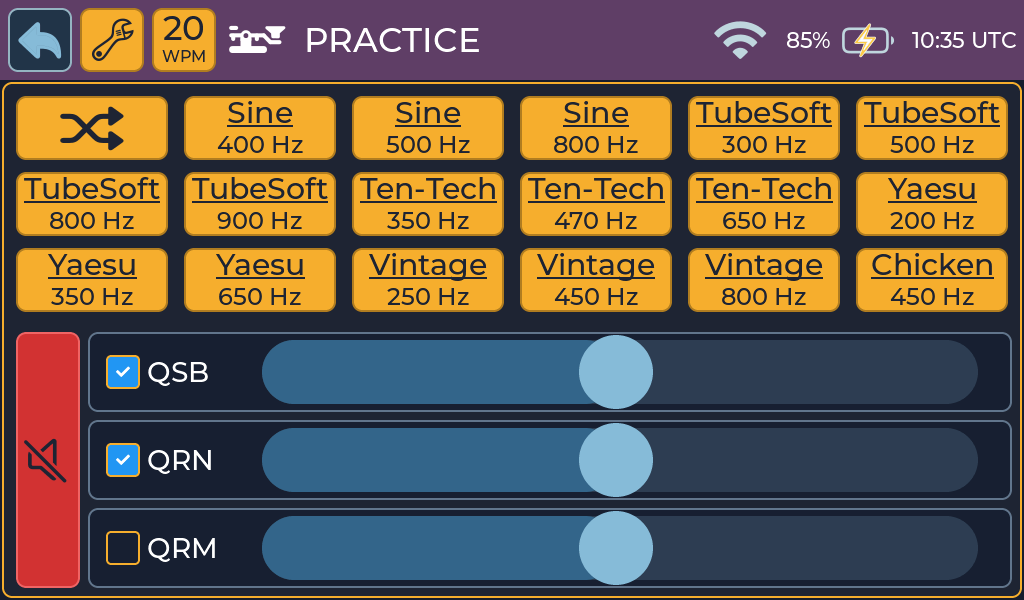
| Control | What it does |
|---|---|
| Sound preset buttons | Try a different sidetone sound and pitch for this session. Tap the selected preset again to return to the saved Sidetone setting. |
| Random sidetone | Selects a different available preset and frequency at random for this session. |
| QRN tick box and slider | Adds atmospheric static: a band of receiver noise with occasional crackles. The slider sets the intensity, 0 to 100. |
| QRM tick box and slider | Adds interference from other stations: slow background Morse traffic. |
| QSB tick box and slider | Adds fading. |
| Mute button | Silences QSB, QRN and QRM together without changing which effects are enabled or their intensity settings. It turns red while checked. |
All effects start turned off, with the slider at 50, every time you open Send Practice. QSB fades the wanted sidetone; QRN and QRM are mixed in afterward. The effects and temporary sound-preset choice are not saved.
The screen uses QSB, meaning fading. QRB means distance between stations and is not one of the available effects.
Tips
- Start with QRN at a low intensity and raise it as you get used to it.
- Noise follows the device volume, so turning the volume knob changes both your sidetone and the noise.