What this activity teaches
Your “fist” is the way you send: the length of your dits and dahs and the gaps between them. Timing Check plays a character with ideal timing, records how you send the same character, and shows both side by side with a score and suggestions.
What you need
- A straight key or bug. Timing Check ignores paddles.
- At least one key input set to Straight Key or Bug in Keyer settings.
If no input is set up this way, Timing Check shows a message: Timing Check requires a Straight Key or Bug. Configure one in Keyer Settings. Tap it to go straight to Keyer settings; saving or cancelling brings you back.
How to start
- On the main menu, select Send.
- Select Timing Check.
- Morse Scout plays the target character, R by default, with ideal timing.
Screen and controls
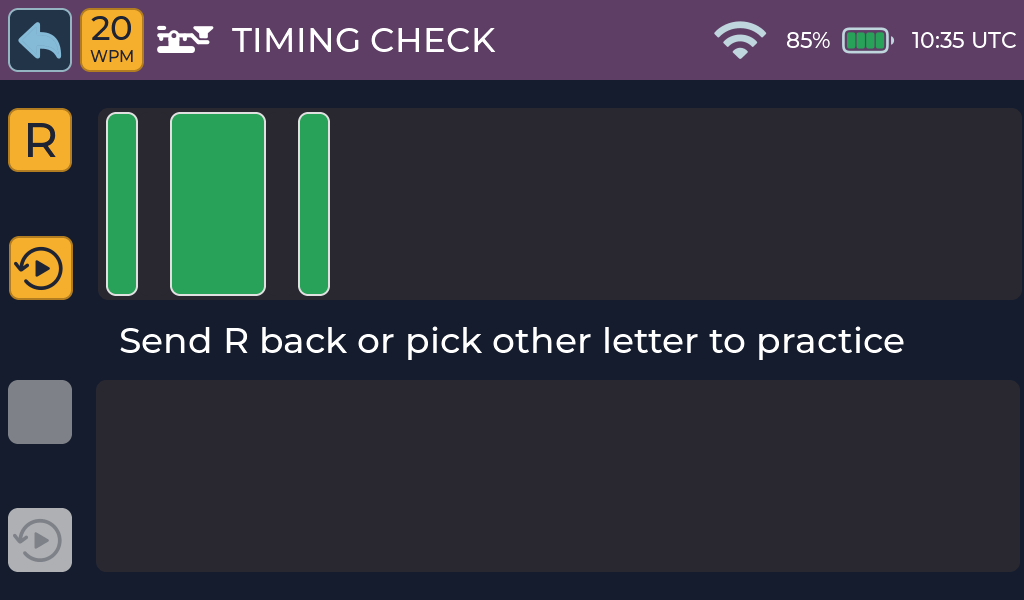

Target character button: shows the character to practise. Tap it to choose another letter, digit or punctuation mark from the on-screen keyboard. Morse Scout plays the new target straight away.

Repeat target: plays the ideal character again.

Speed control: sets the target speed. It is the same speed used by the other Send activities.
- Target graph: the ideal pattern. A dit is a short bar, a dah is three times as long, and gaps are shown in proportion.
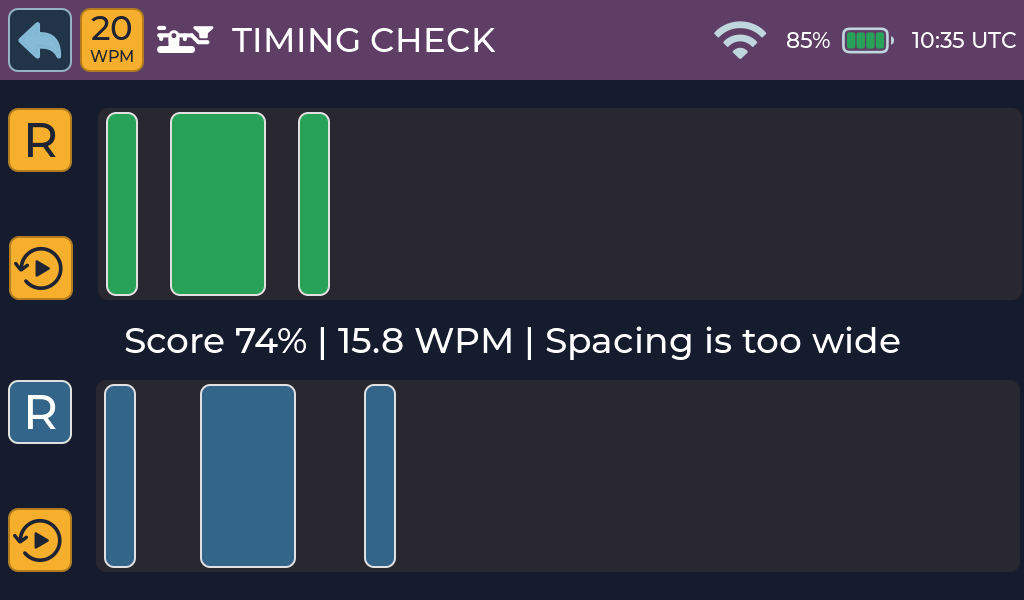
- Your graph: the pattern you sent, drawn to the same scale.
- Received character: what your sending decoded as.
- Repeat received: play back exactly what you sent, with your own timing. Available after an attempt.
- Review line: your score, your speed and a suggestion.
Choose a target
Tap the target character button to open the keyboard. Choose a letter, digit, or supported punctuation character. The keyboard closes and Morse Scout plays the new ideal target immediately.

How to practise
- Listen to the target.
- Send the same character on your key.
- Stop and wait. The attempt ends after a short pause (about six dit lengths, at least a quarter of a second).
- Compare the two graphs, read the review, and listen to Repeat received.
- Send again. Your next key press clears the previous attempt.
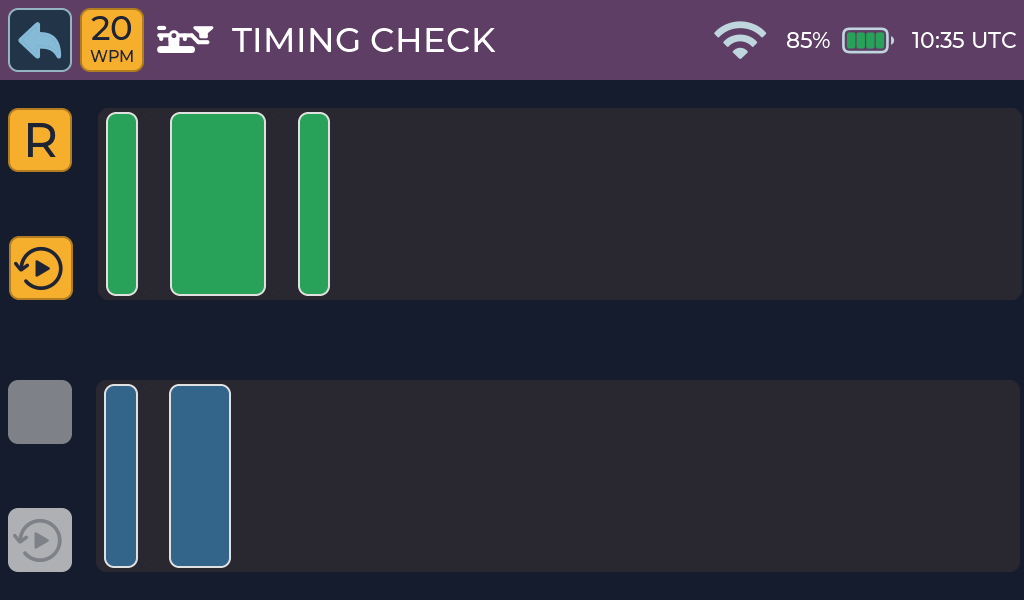
If you hold the key down for more than three seconds, the attempt ends and the review reports that the key appears held down.
Scoring and feedback
The review line shows a score as a percentage and your estimated speed to one decimal place, for example Score 85% | 14.2 WPM. It may add one suggestion:
| Message | Meaning |
|---|---|
| Extra element / Missing element / Wrong element | The pattern of dits and dahs does not match the target. |
| Dahs are too short / Dahs are too long | Aim for dahs three times as long as a dit. |
| Key-downs are too light | Your dits are short compared with the gaps between them. |
| Spacing is too wide | The gaps inside the character are too long. |
| Sending is slow / Sending is fast | Your speed differs from the target speed. |
| Dits are uneven / Dahs are uneven | Your elements vary in length. |
If there is nothing significant to fix, only the score and speed are shown.
Accurate result

Actionable feedback
Activity options
- Target character: tap the target button.
- Speed: title-bar speed control.
Practice tips
- Work on one fault at a time; the suggestion shows the most important one.
- Use Repeat received to hear your own sending. Many faults are easier to hear than to see.
- With a bug, your speed estimate is based on the rhythm of element starts, so the weight of your dahs does not change it.
Common problems
- The hint about Keyer settings appears: set an input to Straight Key or Bug.
- Nothing is recorded: make sure you are using the key on the input you set up, not a paddle.
- More help: Troubleshooting.