What this activity teaches
Copy Call trains you to send callsigns, which mix letters and digits, quickly and accurately. You can choose where the callsigns come from and have Morse Scout show the country after each one.
What you need
- A key connected and set up in Keyer settings.
How to start
- On the main menu, select Send.
- Select Copy Call. The setup screen opens.
- Choose your options (below), then select Start.
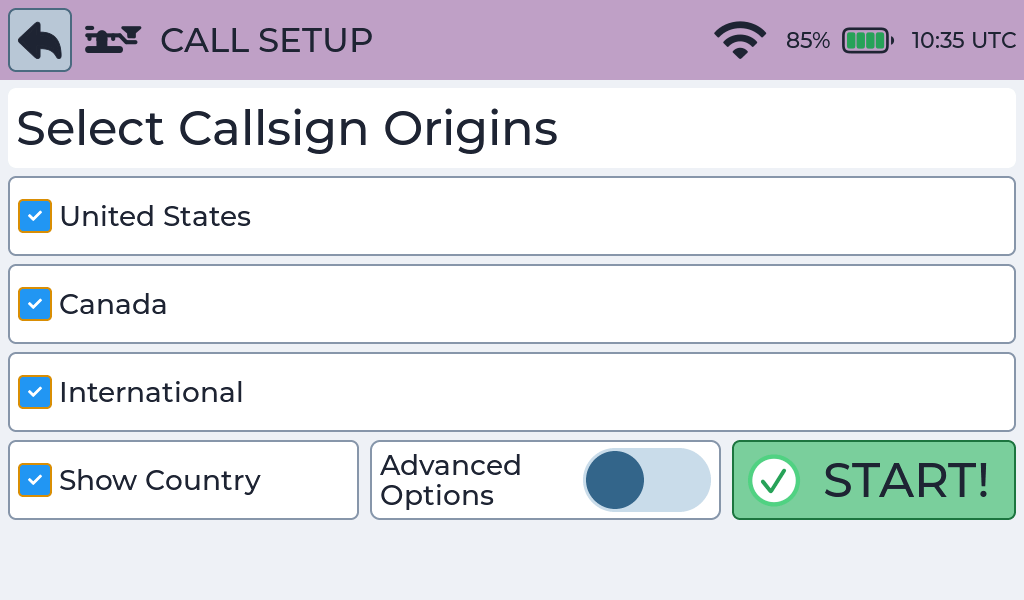
Adjust the callsign distribution
Turn on Advanced Options to choose how often callsigns from each origin appear. A slider and lock appear beside United States, Canada and International.
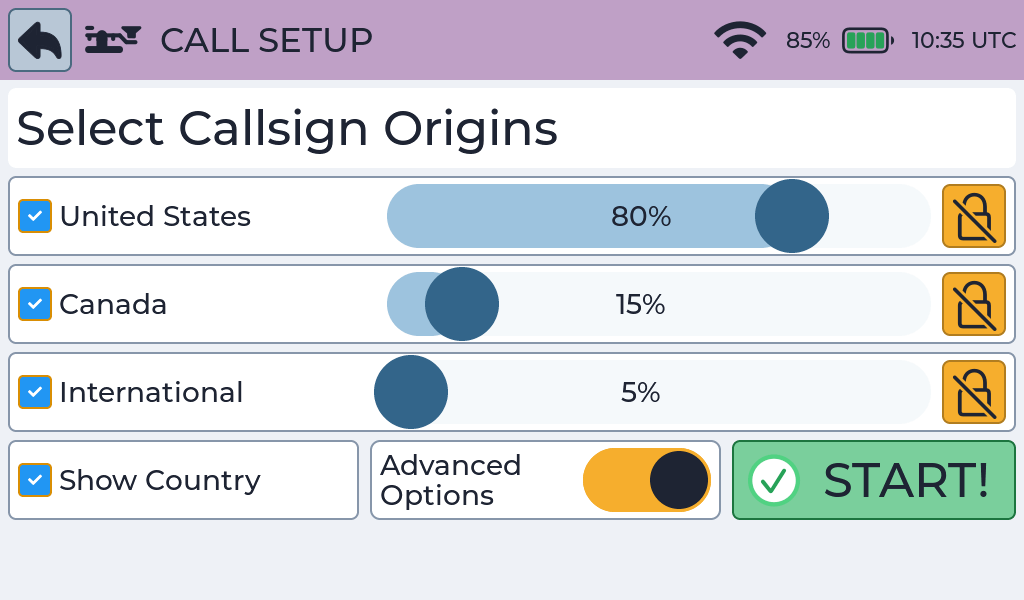
- Keep each origin you want to practise selected.
- Move an origin’s slider to the percentage you want. On the touchscreen, drag the slider. With the rotary encoder, turn the knob while that slider has the focus outline.
- Watch the other enabled, unlocked percentages rebalance automatically. The three percentages always total 100%.
- Select Start when the mix is ready. Turning Advanced Options off only hides the controls; it does not discard the distribution.
Keep one percentage fixed
Select the lock beside an origin to keep its percentage fixed while adjusting another slider. Only one lock can be active. Select the active lock again to clear it, or select another lock to move it.
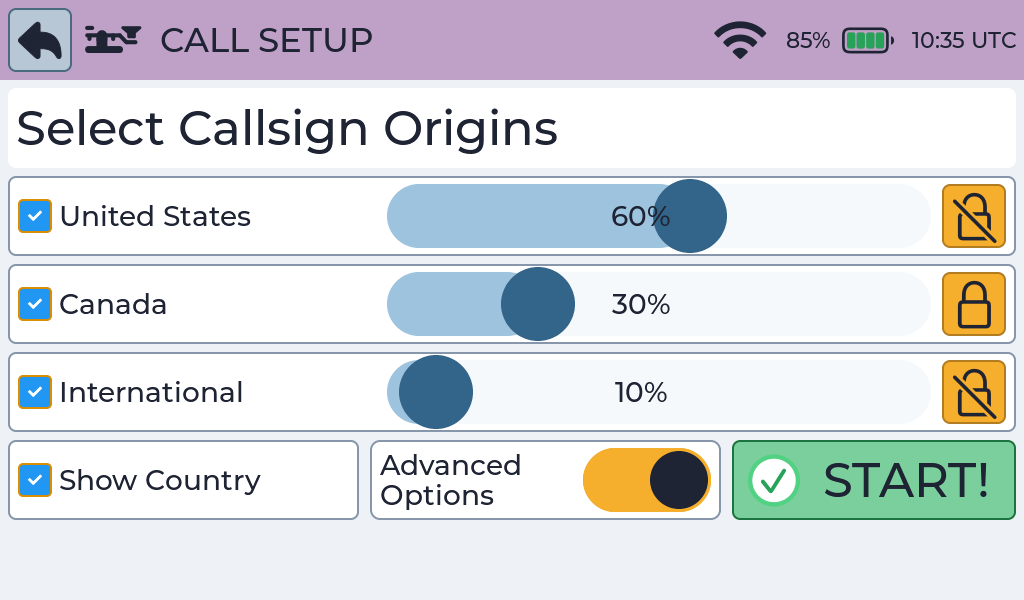
In this example, Canada stays at 30% while changes to the United States or International slider rebalance the remaining 70%.
Exclude an origin
Clear an origin to exclude it temporarily. Its percentage becomes 0%, its slider and lock become unavailable, and any lock on it is cleared. Morse Scout remembers its previous share so selecting it again restores that share when possible. At least one origin always remains selected at 100%.
Screen and controls
The game screen is the same as Copy One: a prompt panel, an answer panel, a score and the speed control. With Show Country on, an information line shows the country or entity after each round.

How to play
- Watch and listen as Morse Scout sends a callsign.
- When the answer panel is highlighted, send the callsign.
- Morse Scout scores your answer.
- If Show Country is on, the country appears for two seconds after the result, then the next callsign is sent.
Send the callsign back
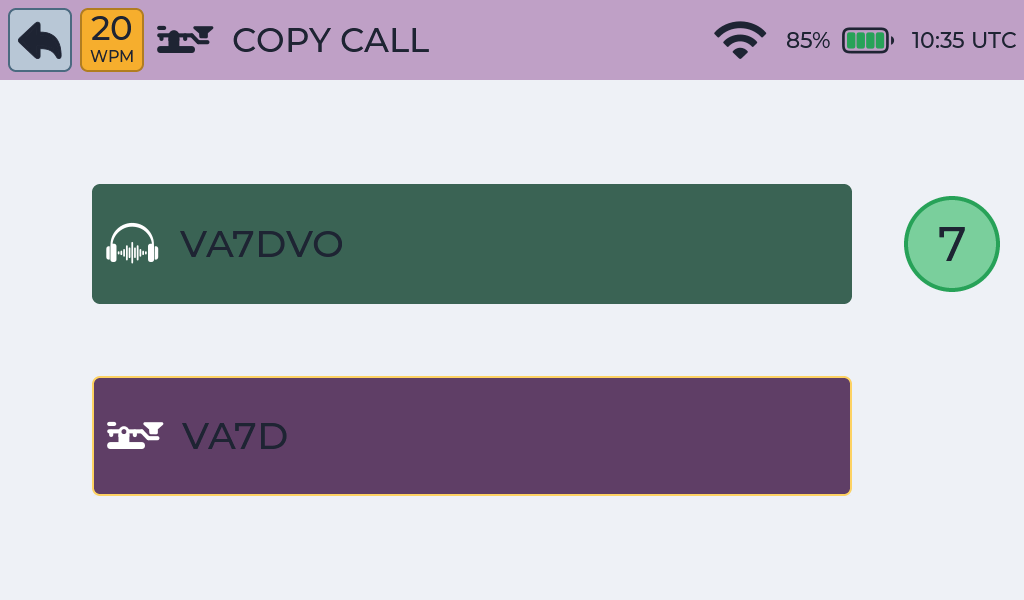
Scoring and feedback
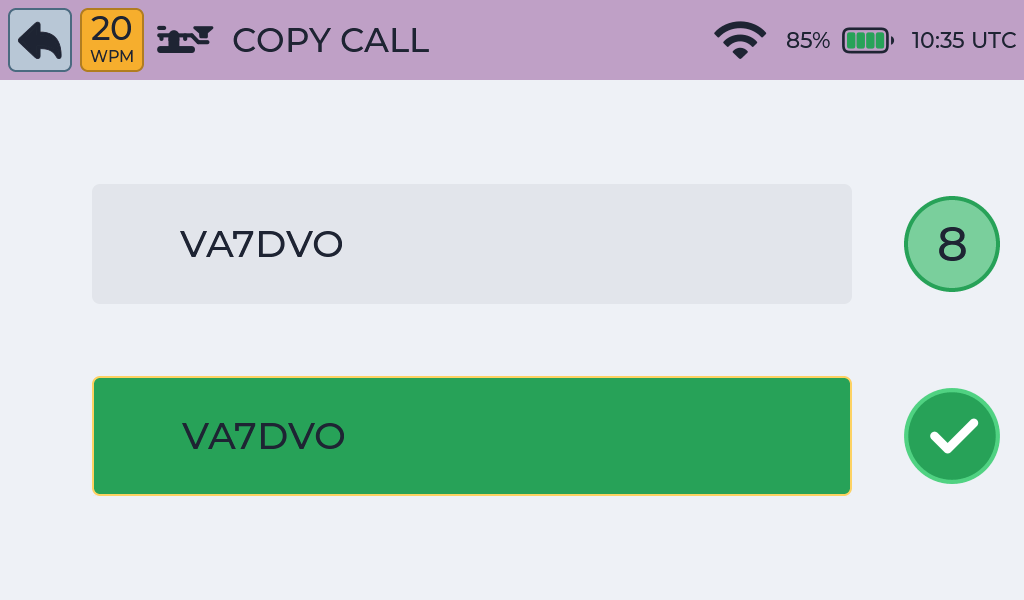
Correct answer
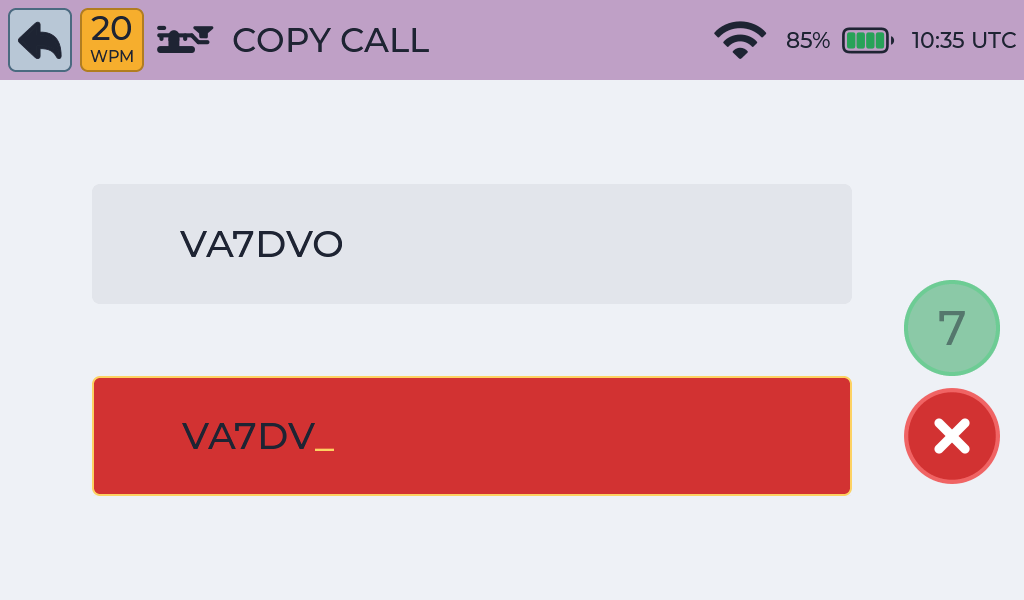
Incorrect answer
- Correct: a tick animation plays and the score increases by one.
- Incorrect: wrong characters show in red and the score returns to zero.
- Gap too long between characters: the answer fails and an underscore _ marks the gap.
- Word gap before the end of the callsign: the answer fails immediately.
Country display

Activity options
| Option | Effect |
|---|---|
| United States | Include US callsigns. |
| Canada | Include Canadian callsigns. |
| International | Include callsigns from other countries. |
| Show Country | Show the country or entity after each round. |
When you choose several sources, US callsigns are the most common. With all three on, about 80% are US, 15% Canadian and 5% international. If you turn all three off, Morse Scout uses that same mix.
Practice tips
- Callsigns are easier when you recognise the prefix as a unit. Watch the country display to connect prefixes with places.
- Practise International alone to work on unfamiliar prefixes.
Common problems
- No country appears: make sure Show Country is on. Some callsigns may not have country information.
- More help: Troubleshooting.