What this activity teaches
Copy One builds clean sending of single letters. Morse Scout shows and sends one random letter from A to Z, and you send it back.
What you need
- A key connected and set up in Keyer settings.
How to start
- On the main menu, select Send.
- Select Copy One. The game starts straight away.
Screen and controls

- Prompt panel (top): the letter being sent. It is highlighted while Morse Scout sends.
- Answer panel (bottom): what you sent. It is highlighted while Morse Scout is waiting for your answer.
- Score: your number of correct answers in a row.
- Speed control and Back in the title bar.
How to play
- Watch and listen as Morse Scout sends the letter.
- When the answer panel is highlighted, send the same letter.
- Morse Scout scores your answer and starts the next round.
Send the character back

Scoring and feedback
Correct answer
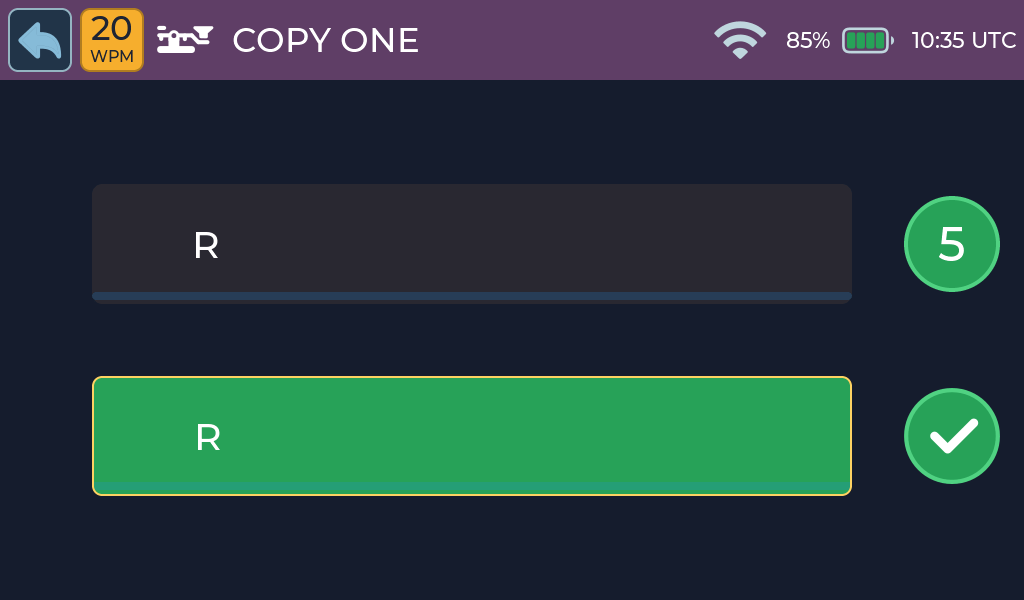
Incorrect answer
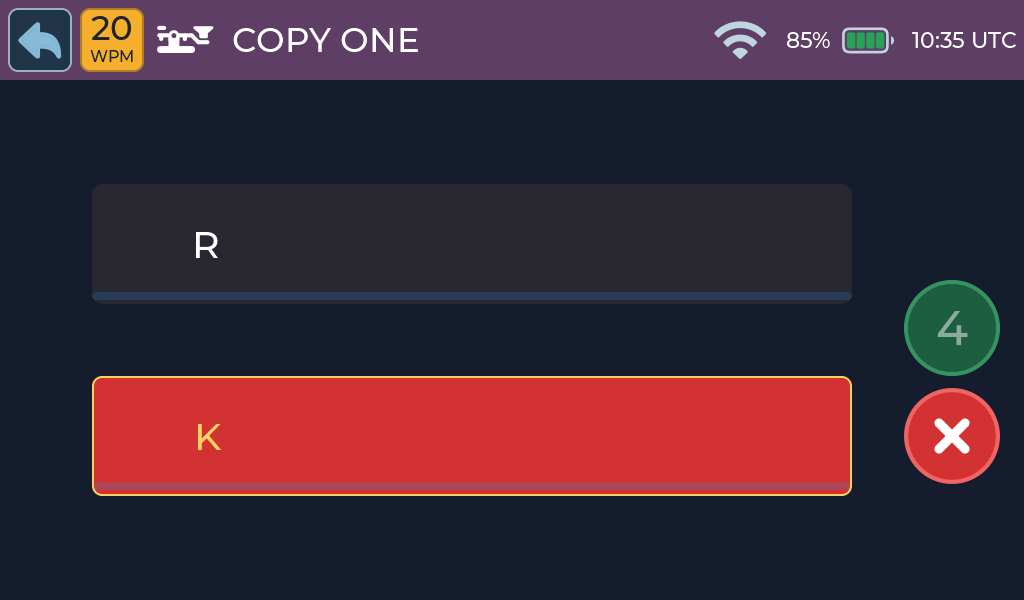
- Correct: a tick animation plays and the score increases by one.
- Incorrect: a cross appears, the wrong character shows in red and the score returns to zero.
- A red ? means your pattern was not a recognised character.
Activity options
There is no setup screen. Change the speed with the title-bar speed control. Changing speed pauses the round while the speed buttons are open.
Practice tips
- Start slowly and aim for a long run of correct answers before speeding up.
- Listen to the rhythm rather than counting dits and dahs.
Common problems
- Correct-looking answers scored wrong: check your spacing inside the character; a gap that is too long splits it into two characters.
- No response to keying: see Troubleshooting.