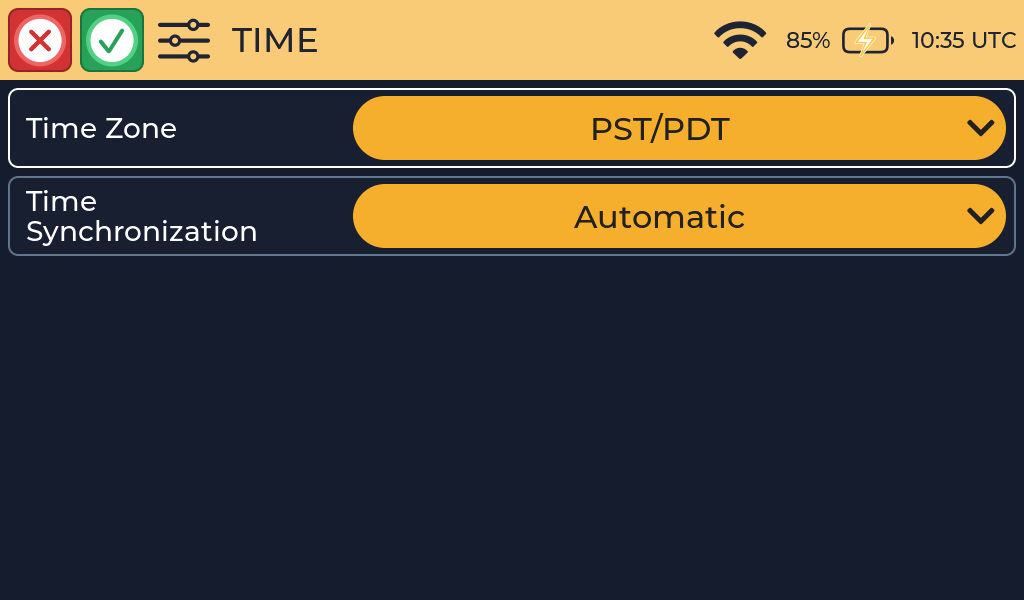
Open Settings → Time to choose the local time zone and how Morse Scout sets its clock.
| Setting | Choices | Default |
|---|---|---|
| Time Zone | UTC, EST/EDT, CST/CDT, MST/MDT, PST/PDT, AKST/AKDT, HST | PST/PDT |
| Time Synchronization | Automatic, Manual | Automatic |
| Set Time (24H) | Hour and minute; shown only in Manual mode | Not applicable |
Local and UTC time
When the time is known, the taskbar displays a clock. Tap the time in the taskbar to toggle its display between local time and UTC. This changes only how the time is displayed; it does not change the saved time zone or the clock itself.
Set the clock automatically
In Automatic mode, saving the Time screen wakes Wi-Fi when synchronization is needed. If a saved network is available, Morse Scout connects, obtains the time from an internet time server, and allows Wi-Fi to return to sleep after the synchronization completes.
The selected time zone converts internet time to local time. You can still toggle the taskbar clock between local time and UTC by tapping it.
Set the clock manually
Select Manual when an internet connection is unavailable. The Set Time (24H) row appears with separate hour and minute controls.
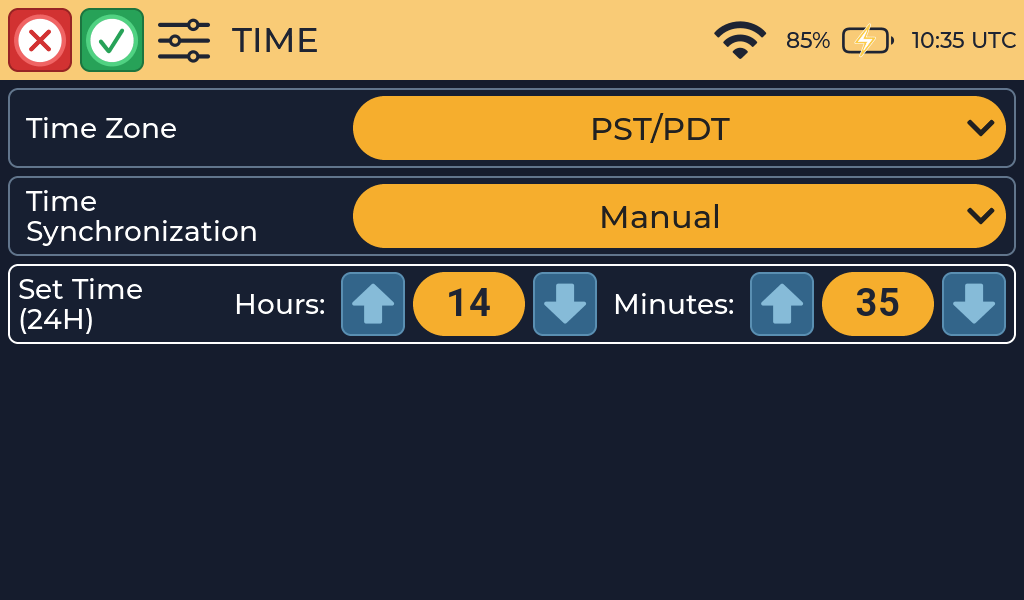
Set the hour from 00 to 23 and the minutes from 00 to 59. The selected time zone still determines how local time is displayed.
Select ✓ to save, or select ✕ to leave without saving the changes. Switching from Manual back to Automatic and saving requests a new internet-time synchronization.
Morse Scout keeps the time while it is off or asleep using a backup clock. If the time has never been set, the taskbar clock is hidden.