Morse Scout has three key inputs. You can connect up to three keys at once, for example a paddle and a straight key, and use whichever you like.
Plug wiring
Each input is a stereo jack with three contacts. A key closes a contact to the sleeve (ground).

| Key type | Tip | Ring | Sleeve |
|---|---|---|---|
| Straight key | Key contact | Not used | Ground |
| Bug | Dit/dah contact as one key line | Not used | Ground |
| Paddle | Dit or dah (you choose) | The other paddle | Ground |
A straight key or bug with a mono plug works: Morse Scout ignores the ring for those key types.
Tell Morse Scout what is connected
On a new device every input is set to Not Connected, and keying makes no sound until you change it.
- On the main menu, select Settings, then Keyer.
- Set Key Input to the input your key is plugged into (Input 1, Input 2 or Input 3).
- Set Key Type to Straight Key, Paddle or Bug.
- For a paddle, also set: – Contact Order: Tip = Dit or Tip = Dah. If dits and dahs come out swapped, change this. – Iambic Mode: Iambic-A or Iambic-B. If you are unsure, start with Iambic-A.
- Repeat steps 2 to 4 for any other inputs.
- Select ✓ (Save) in the title bar.
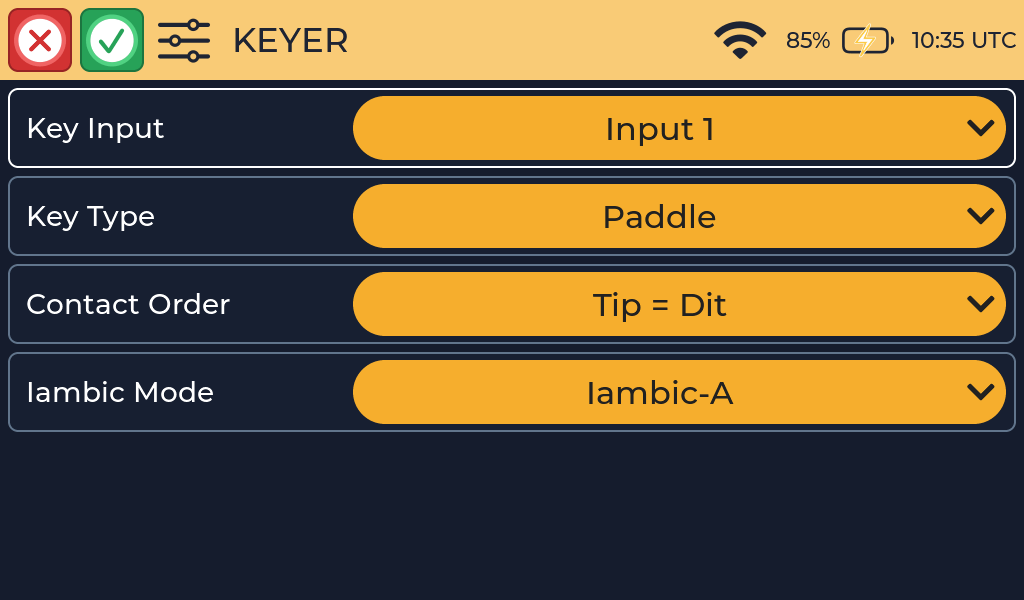
Full details are in Keyer and key inputs.
Test your key
- Go back to the main menu and select Send, then Practice.
- Send a few characters. You should hear the sidetone and see the letters appear on screen.
If nothing happens, see Troubleshooting.
Using more than one key
- Whichever input starts a character owns it until the character is complete. Keys on other inputs cannot add elements to that character.
- If one key is held down or shorted when Morse Scout starts, the other inputs still work. Release the stuck key to use it.
- An input set to Not Connected is ignored completely.