What this activity teaches
Receive Words trains you to recognise whole words and short phrases by ear, the way you hear them on the air. Morse Scout can imitate different kinds of sender and can speak each word aloud so you can check your copy without looking at the screen.
What you need
- No key is needed.
- Optional: your own lists on a microSD card. See Word and phrase lists.
Choose session options
- On the main menu, select Receive.
- Select Words. The WORDS SETUP screen opens.
- Choose a source list, session duration, recognition time and sender style.
- Select Start.
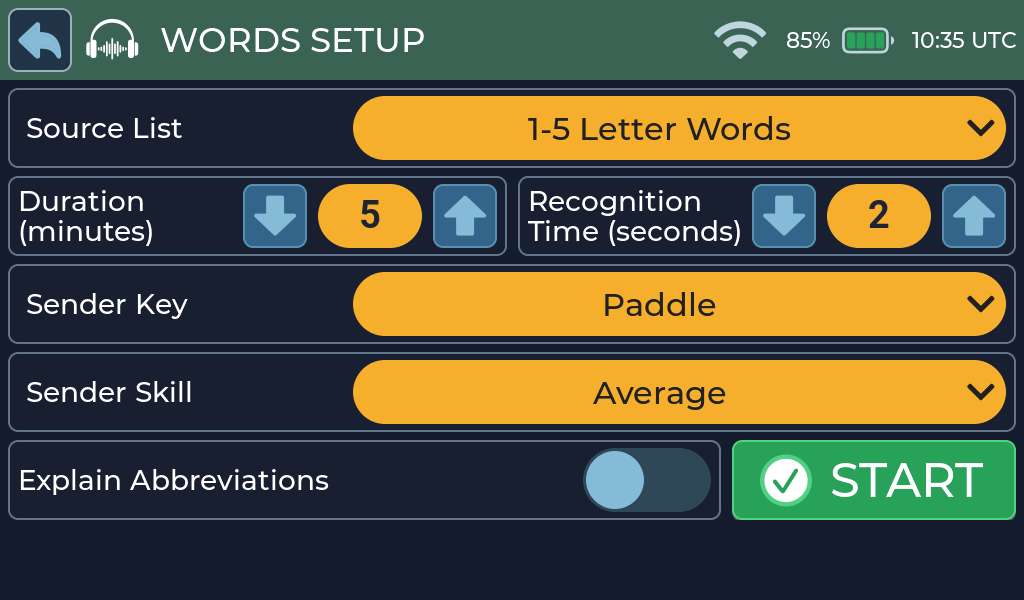
The setup controls are:
- Source List: select a built-in list or a compatible list found on the microSD card.
- Duration: set a session from 1 to 60 minutes.
- Recognition Time: allow 0 to 10 seconds to copy or say the word after its first Morse transmission.
- Sender Key: choose Paddle, Bug or Straight.
- Sender Skill: choose Expert, Average, Novice or Challenge.
- Explain Abbreviations: when enabled, spoken answers add the meaning of recognised abbreviations after spelling them. For example, an abbreviation can be spoken as its letters followed by its meaning.
Your choices are remembered for the next session.
Screen and controls
The second row contains the controls and stage indicators used during a session.

Previous or restart: while a session is running, tap once to restart the current word and tap twice to move to the previous word. While paused, one tap moves to the previous word immediately.

Play/Pause: pause or resume the session. The icon changes to Play while paused.

Next word: skip to the next word or phrase.

Say Before: turn the spoken prompt before the first Morse transmission on or off. The disabled talking icon means that the option is off.

Say After: turn the spoken answer after the copy interval on or off. It is enabled when a session starts.

Speed control: change the Morse character speed. The new speed applies to the current session.
The HEAR, COPY and AGN panels show the active part of the cycle. The Copy panel includes a progress bar. TIME shows the remaining session time.
How each word is presented
Spoken prompt

If Say Before is on, Morse Scout speaks the word first. This step is skipped when Say Before is off or speech is unavailable.
First Morse transmission

The HEAR panel is highlighted while Morse Scout sends the word. Its text appears on the screen as it is sent. Look away from the text area when you want to practise entirely by ear.
Copy interval

The COPY panel is highlighted after the first transmission. Its bar shows the remaining recognition time. Use this interval to write down or say the word before the answer is spoken.
Spoken answer

If Say After is on, Morse Scout speaks the answer so you can check your copy. Spoken answers use Morse Scout’s built-in offline voice. If speech is not available, the session continues in Morse only. See Spoken answers.
Morse repeat

The AGN panel is highlighted while Morse Scout sends the same word once more in Morse. It then pauses for one second, plays a quiet, glass-like ding, and leaves another 600 milliseconds of silence before advancing to another entry from the selected list. The ding is omitted when the session has ended or there is no next entry.
Pause and navigate

Pause when you need more time. While paused, the session time stops counting down, the center control changes to Play, and the previous and next controls let you move through the session without restarting playback.
Sender styles
Sender Key changes the style of the sending:
- Paddle: even, machine-like timing at the selected speed.
- Bug: shorter dits and longer dahs, with more swing at Novice and Challenge.
- Straight: small differences between dits and dahs and slightly looser spacing.
Sender Skill adds human variation without changing the overall speed:
| Skill | Timing variation |
|---|---|
| Expert | About ±5% per element |
| Average | About ±10% |
| Novice | About ±20% |
| Challenge | About ±25%, plus occasional mistakes and corrections |
With the Challenge sender, Morse Scout can make a deliberate mistake, send a correction signal, pause, and then send the word again. The mistaken word turns red before the corrected word follows it.
Scoring and feedback
Receive Words does not score you. Use the spoken answer, repeated Morse or displayed text to check your copy.
Practice tips
- Start with Say After on and Recognition Time at 2 seconds. Try to say the word before Morse Scout does.
- As you improve, reduce the Recognition Time and try Average or Novice senders.
- Lists of short words are a good place to begin.
- Enable Say Before when learning unfamiliar material, then disable it when you are ready to recognise words from Morse alone.
Common problems
- The list you added does not appear: check the folder and file name in Word and phrase lists.
- No spoken words: check that Say After or Say Before is on. See Spoken answers.
- The sender is difficult to copy: choose Expert or Paddle first, then add timing variation gradually.
- More help: Troubleshooting.